Few things are as annoying as a 6 GB download that fails at 90%. Browsers often give up and start again from zero. A download manager for Windows keeps track of every byte it has already saved, so most interrupted downloads can carry on from where they stopped.
Why downloads break
- The Wi-Fi dropped, the router restarted or the PC went to sleep.
- The server closed the connection after a time limit.
- The download address expired. Many sites use temporary links that stop working after an hour or a day.
- Windows restarted for an update, or an app crashed.
Resume a download in BLBOL
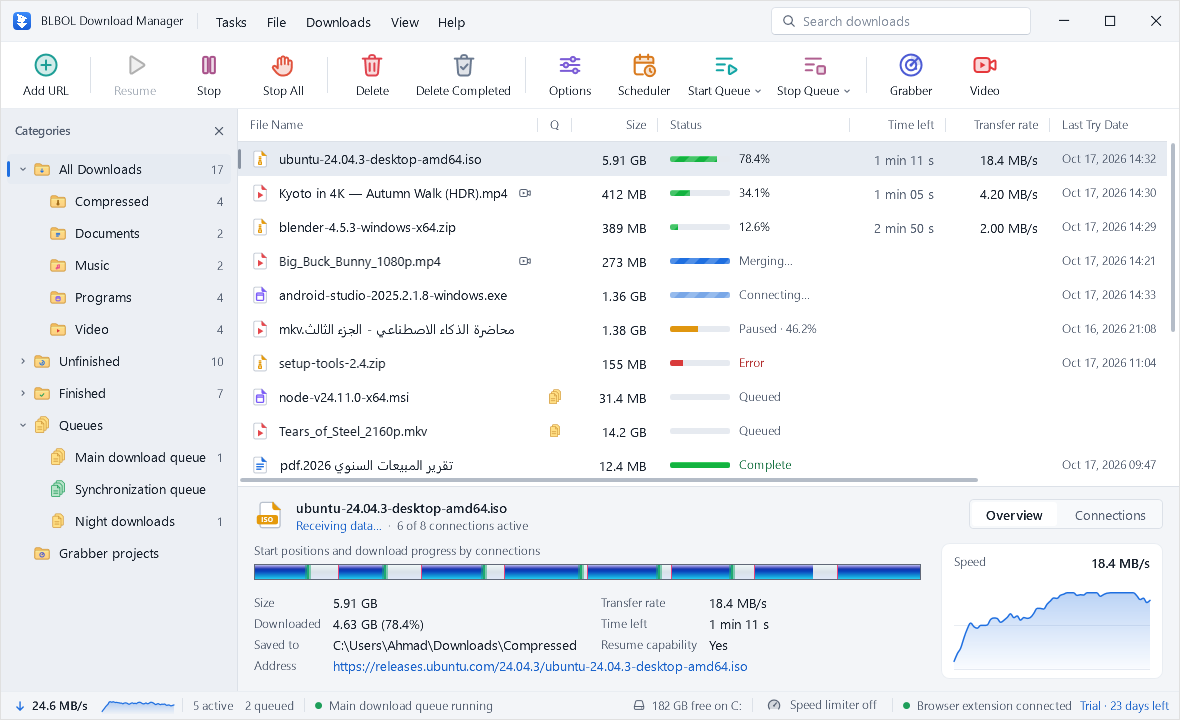
- Find the download in the main list. Unfinished downloads also appear under the Unfinished category.
- Select it and press Resume on the toolbar, or press Space.
- BLBOL reconnects and continues from the last saved position, using all its connections again.
The details pane shows Resume capability: Yes when the server supports continuing a download. BLBOL saves its progress regularly and whenever you pause, so even after a crash or a power cut only the last few seconds need to be fetched again.
When the link has expired
If the server now answers with an error such as 403 Forbidden, the address has probably expired. BLBOL tries to refresh it automatically when it can. You can also do it yourself:
- Right-click the download and choose Refresh download address.
- Open the page you downloaded from and start the download again in your browser. With the extension installed, BLBOL captures the new address.
- BLBOL checks that the new address points to the same file, comparing its size and contents, before it reuses a single byte, then continues.
When resuming is not possible
Some servers do not support ranged requests. The details pane then shows Resume capability: No, and an interrupted download has to start again. To reduce the risk for big files from such servers, avoid sleep mode during the download and keep other heavy transfers paused.
Rescue a failed browser download
If the download failed in your browser, you can hand it to BLBOL instead of retrying there:
- Open the browser's downloads page (
chrome://downloadsoredge://downloads). - Right-click the failed item and copy its link address.
- Press Ins in BLBOL and start the download. Next time, the BLBOL extension does this for you automatically.
The partial file the browser saved cannot be reused, but from now on BLBOL can resume the download if it is interrupted again.
Prevent broken downloads
- Schedule large downloads for the night and let BLBOL put the PC to sleep only when everything is finished.
- Prefer a cable over Wi-Fi for very large files.
- Download right after copying the link from sites that use short-lived links.
- Keep an eye on free disk space: BLBOL's status bar shows it at all times.
Ready to try it? Download BLBOL and use every feature free for 30 days.
Download free trial